Add a connection
Connect T:0 to a bank, payment processor, payroll provider, or other financial platform so T:0 can import its transactions. This article covers adding a new connection from the Connections page.
Select a connection
-
Go to Connections.
-
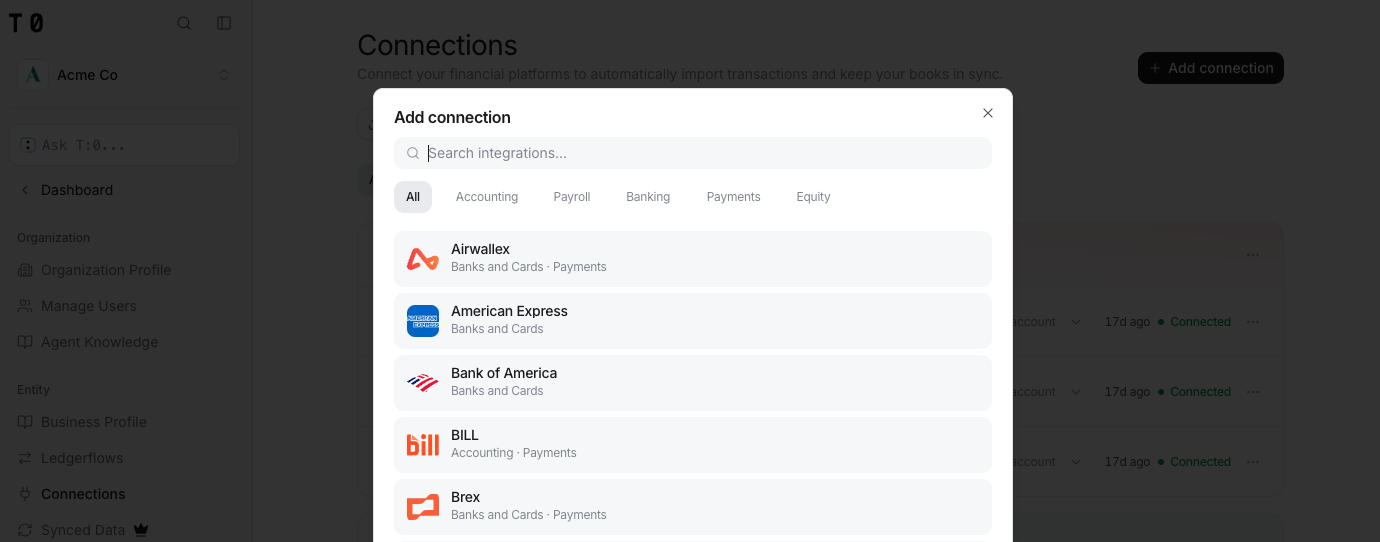
Click + Add connection.
-
Type a name into Search integration.
-
Click the provider you want to connect.
Finding your banking institution
If your bank doesn't come up as a native connection, connect it via Plaid. T:0 uses Plaid to aggregate connections to 12,000+ institutions.
Write to T:0 at support@t0.ai if an integration is unavailable natively or through Plaid.
Complete the connection
What happens next depends on how the provider connects.
Login (OAuth)
-
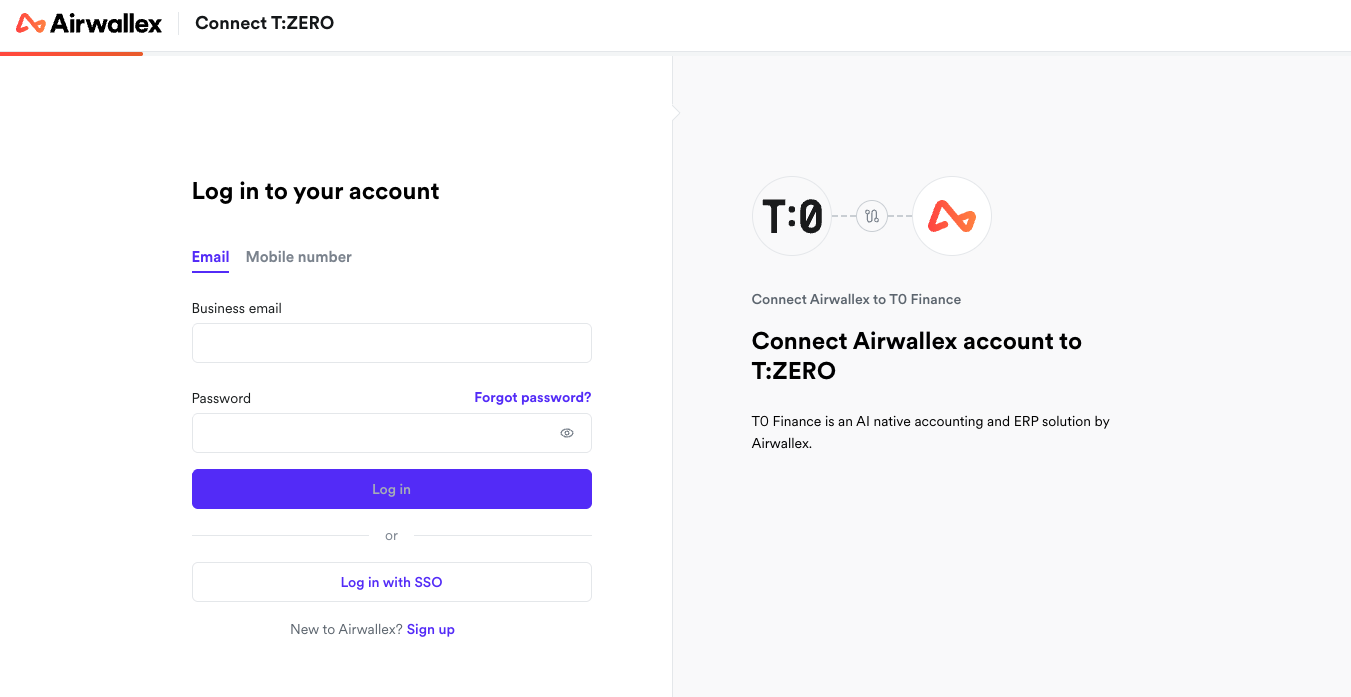
T:0 redirects you to the provider's login page (for example, Airwallex).
-
Log in with your account credentials, or use single sign-on if the provider offers it.
-
Authorize the connection. T:0 returns you to the Connections page, where the provider shows Connected.
Plaid
- In the Plaid window, enter your phone number, or click Continue without phone number.
- Follow Plaid's prompts to select your institution and log in. T:0 returns you to the Connections page, where the account shows Connected.
CSV upload
- In the import modal, drag your exported file into the upload area, or click Select a file. T:0 accepts
.csv,.tsv, and.txtfiles. - Click Import. T:0 sets up the account automatically.
Re-uploading a file skips anything already imported, so re-importing the same export won't create duplicates.
API key
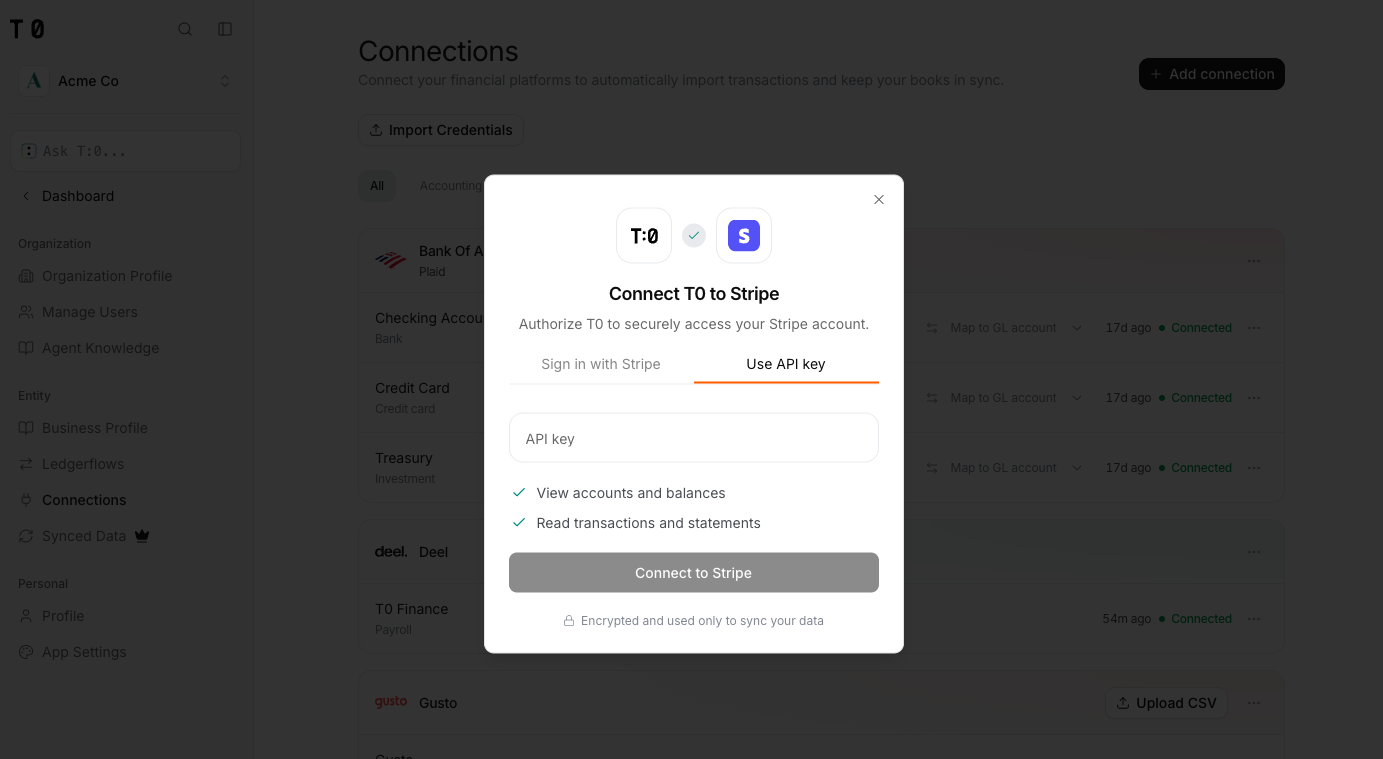
Some integrations let you enter an API key. Generate a key in the provider's own settings and paste it into the text area to enable the connection.
After you connect
The provider appears in your connections list. Each account under it — bank, credit card, or investment — shows its sync status and a Map to GL account control you use to assign it to your chart of accounts.
Renaming and deleting connections
The three-dot menu next to an integration lets you Rename an account or delete it entirely. Choosing Delete account prompts you to disconnect the connection.
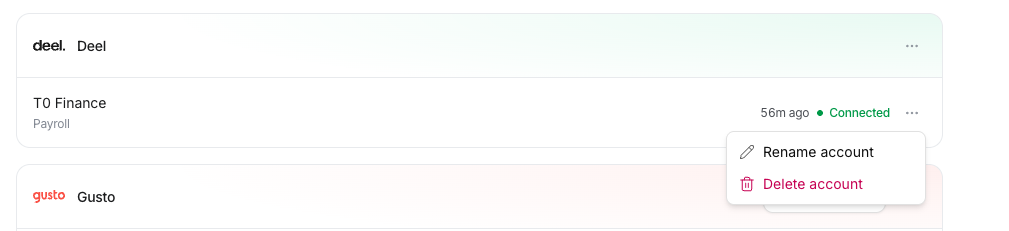
Disconnecting stops that account from syncing. Historical transactions remain in your books.
