Manage your profile and app settings
Your personal settings hold your profile details and the app's appearance options. This article shows where to find them, how to add a profile picture, and how to switch between the light, dark, and native themes.
Open your profile
- In the bottom left corner of the app, click your email address.
- Select Profile.
T:0 opens your profile page, where you can view and manage your profile. The page shows your User ID and Email.
Add or change your profile picture
- Open your profile page.
- Hover over the user icon next to your User ID.
- Click the icon and select the image you want to use.
Change the app theme
-
Click your company name in the top left corner of the app.
-
Select All Settings.
-
Under Personal › App Settings, select Light, Dark, or Native.
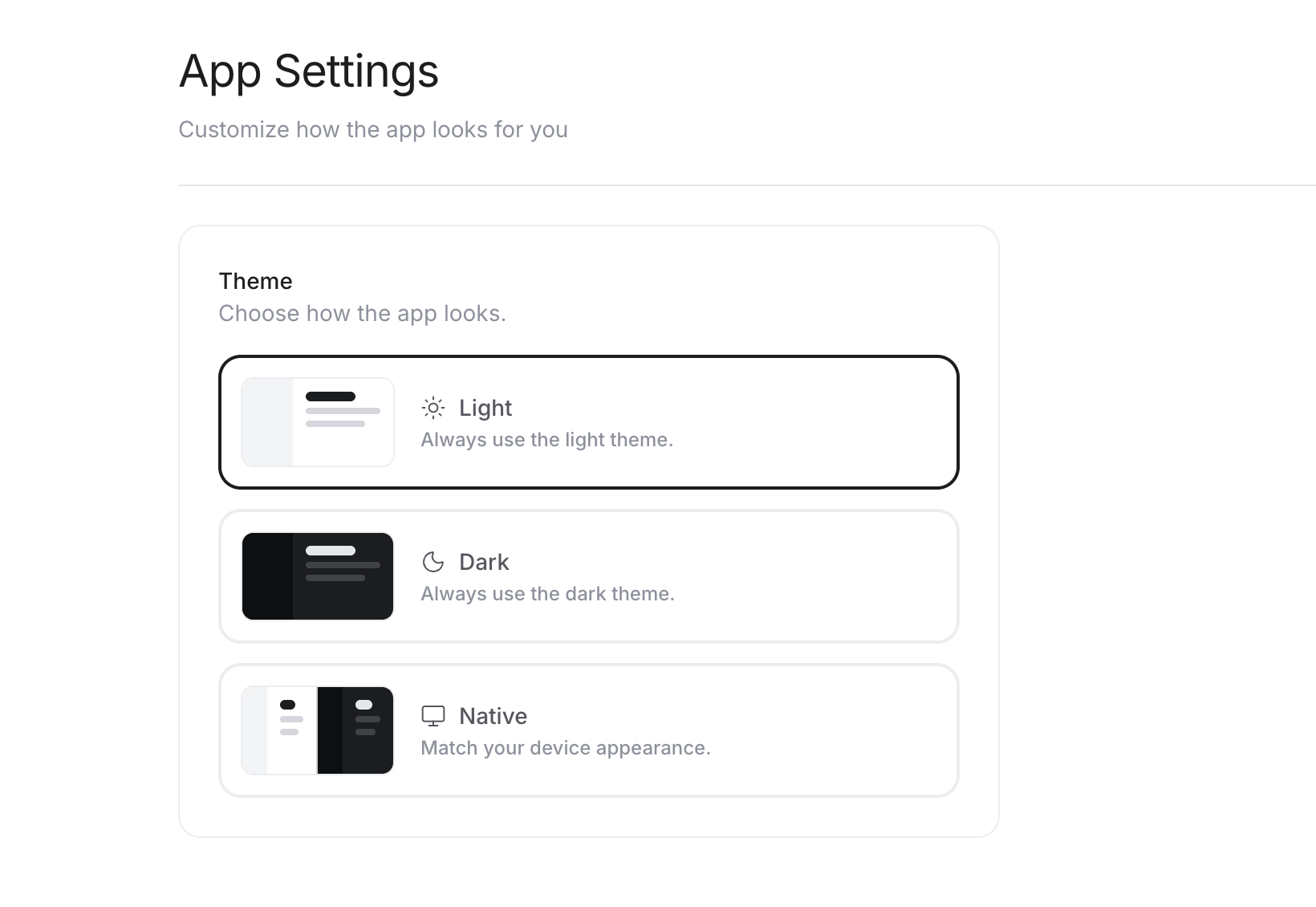
The theme applies to your account only. It doesn't change how T:0 looks for other people in your workspace.
