The Inbox
The Inbox is the queue of transactions that need your review before they post to your books. This article explains what appears there and how to work through Categorize and Match items.
How it works
T:0 categorizes most transactions automatically. When a transaction needs your judgment, it appears in the Inbox in the sidebar, with a count of open items.
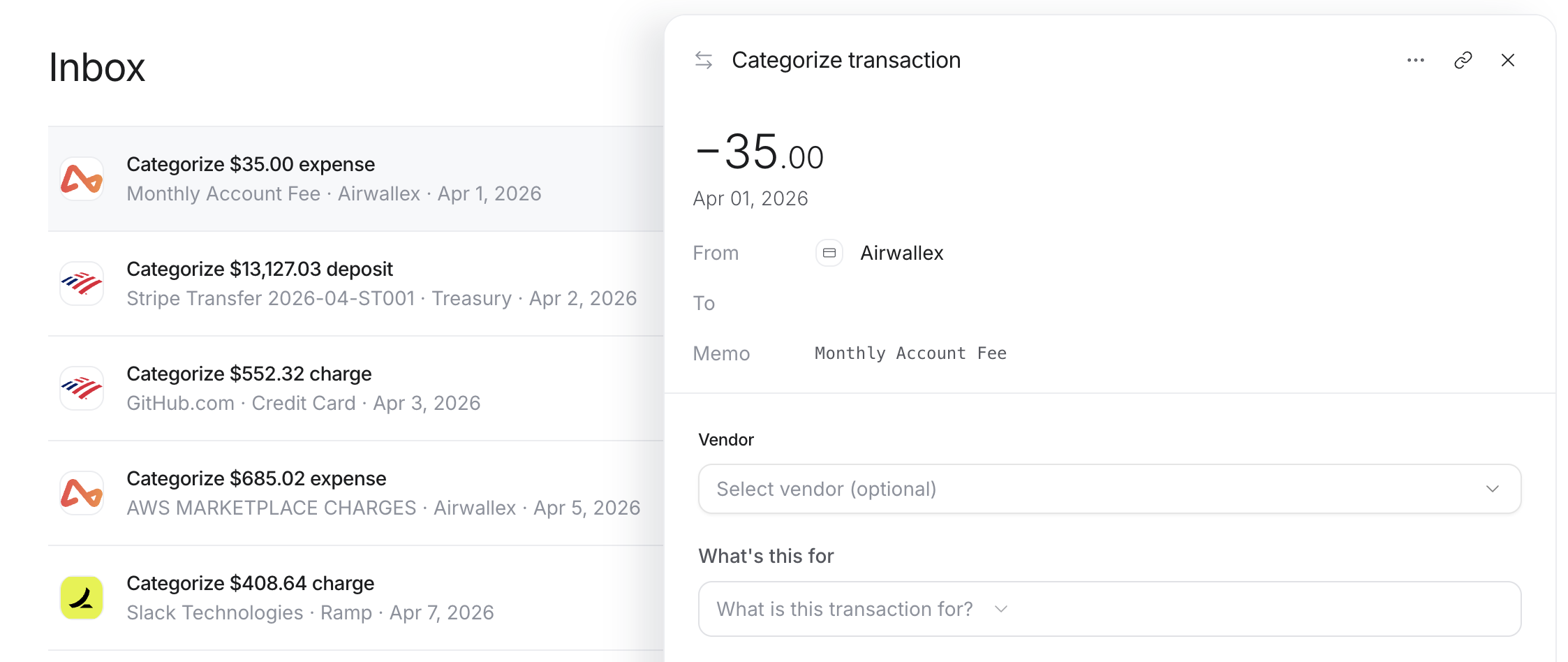
Each Inbox item shows the action needed with the amount (for example, Categorize $35.00 expense), the transaction descriptor, the account or provider it came from, and the date. There are two item types:
| Type | What it is |
|---|---|
| Categorize | An expense, charge, or deposit that needs a category and, optionally, a vendor. |
| Match | A credit that needs a counterparty and a category. |
Categorize a transaction
-
In the sidebar, click Inbox.
-
Click Categorize on the item you want to review. The Categorize transaction panel opens and shows the amount, date, From, To, and Memo.
-
Under Vendor, select the vendor. This field is optional.
-
Under What's this for, select what the transaction is for (Expense, Refund, and so on). You can also choose a specific account from your chart of accounts if you know it.
-
Some categories, such as Refund or Bill Payment, let you link the related transaction.
-
Click Confirm.
Unsure how to categorize something? Click Tell T:0 in the panel and describe the transaction — the agent proposes a category and explains its reasoning. See Categorize with Tell T:0.
Match a credit
- In the sidebar, click Inbox.
- Click Match on the credit you want to review. The same panel opens, with a Counterparty field in place of Vendor.
- Under Counterparty, select the customer. This field is optional.
- Under What's this for, select what the transaction is for.
- Click Confirm.
Transactions that still need a category also show a Categorize button in the Transactions feed and in the Recent transactions table on the Dashboard.
Payroll data upload
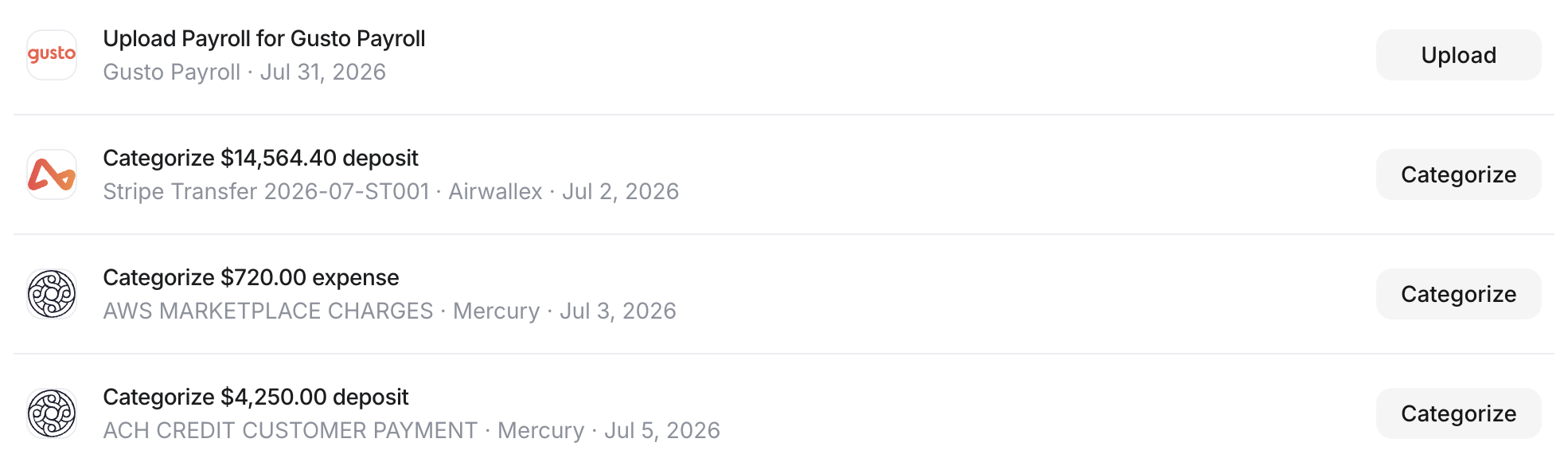
Alongside Match and Categorize, if you use a payroll provider that requires a .csv upload, the Inbox shows you when T:0 needs payroll data. Click Upload and provide a .csv to resolve the item.
Rules generated by T:0 are deterministic — the same transaction is always treated the same way, and every entry is traceable in the audit trail. To learn what handles the rest of your transactions, see How automatic categorization works.
